How To
How to Change Your Facebook Bio Using Fancy Text

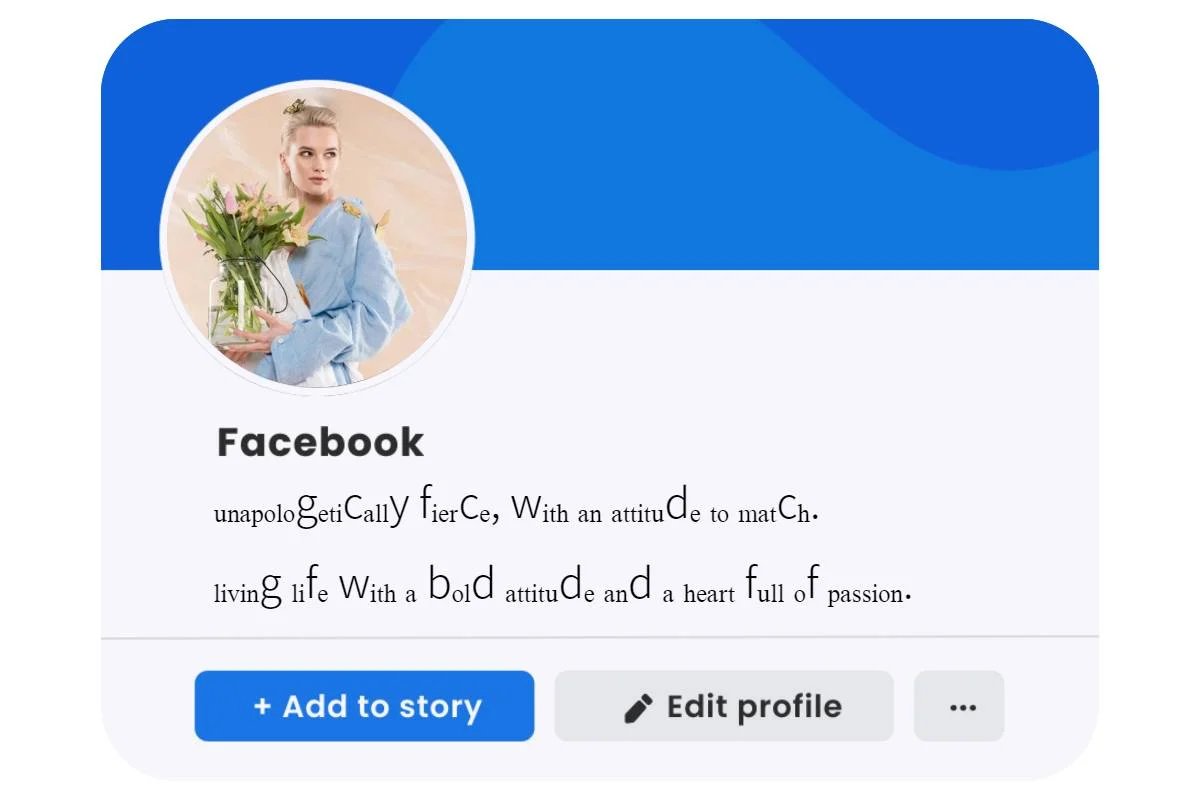
Ever gone to update your Facebook bio and suddenly forgotten how to describe yourself in one or two lines? Same. It feels simple until you are staring at that tiny box thinking, “Do I sound confident… or like I am writing a LinkedIn headline at 2 a.m.?”
Your Facebook bio matters more than most people admit. For a lot of women, it is the first thing an old friend, a new client, a school mum, a colleague, or a potential collaborator sees before they scroll anything else. It can quietly say: this is what I’m about, this is what I do, and this is how to reach me.
And if you like your profile to look polished, adding fancy text is a fun way to make your bio stand out without overdoing it.
Let’s walk through what your Facebook bio is, what makes a good one, how to change it on mobile and desktop, and how to add fancy fonts that still feel readable.
What is your Facebook bio, exactly?
Your Facebook bio is the short description that appears on your profile, usually right under your intro details. Think of it like a mini “about me” line. Not a life story. More like a quick snapshot.
Your bio works best when it matches the vibe of the rest of your intro. If your bio says “freelance makeup artist” but your intro has no contact option and no link, you are making it harder for people to actually book you.
Before you edit anything, decide what you want your bio to do
Here’s the easiest way to write a bio that feels like you and also helps people understand you:
When someone lands on my profile, what do I want them to know or do?
You might want them to:
- Get your vibe quickly (friendly, funny, calm, bold)
- Understand what you do (creator, student, mum, founder, stylist, nurse, designer)
- Click a link to your business or portfolio
- Message you about work
- Feel like they already know you a little
Once you know your goal, writing the bio gets way easier.
Bio ideas that work well for women on Facebook
If you want examples that feel modern and not cringe, try structures like these:
1) The simple identity line
- “Mum of two, tea enthusiast, always planning the next little adventure.”
- “Bookish girl with big goals. London based.”
- “Builder of calm routines and chaotic to-do lists.”
2) The business friendly version
- “Helping small businesses look expensive online. Social media and branding.”
- “Bridal makeup artist. Soft glam, good energy, zero stress.”
- “Virtual assistant for busy women founders. Inquiries welcome.”
3) The personality plus boundaries version
- “Kind heart, sharp boundaries, strong coffee.”
- “Offline more than online. If I don’t reply fast, I’m living.”
- “Growth, grace, and a little bit of chaos.”
4) The fancy text headline plus normal text combo
Use fancy text for one short phrase, then keep the rest plain so it is easy to read.
- “𝓒𝓻𝓮𝓪𝓽𝓸𝓻”
“Beauty, lifestyle, and real life moments. DM for collabs.”
That balance looks intentional, not messy.
How to use fancy text in your Facebook bio (without making it hard to read)
Fancy text tools work by converting your normal letters into Unicode characters that look like different fonts. Facebook usually lets you paste them into the bio field.
Here’s a good approach:
- Write your bio normally first.
- Choose one short part to style, like a title or keyword.
- Use a fancy text generator fancyfonts.co to create a few options.
- Paste the styled version into your bio.
- Check it on your phone and desktop to make sure it displays correctly.
A few practical tips before you commit
- Keep it short. Fancy text is best in small doses.
- Avoid styling your whole bio. It can look cluttered fast.
- Test readability. Some fancy characters are harder to scan quickly.
- Think accessibility. Over-stylized text can be tougher for screen readers.
If you want the “pretty but still readable” look, use fancy text like a header and keep the rest normal.
How to change your Facebook bio on your phone (iPhone or Android)
Facebook moves buttons around sometimes, but this path is usually reliable:
- Open the Facebook app and log in.
- Tap your profile picture or go to Menu, then tap your name to open your profile.
- Look for Edit profile (often near your intro section).
- Find Bio and tap Edit.
- Type your new bio or paste your fancy text version.
- Tap Save.
If you do not see “Bio” right away, scroll slightly within the edit screen. Facebook sometimes tucks it under the intro fields.
How to change your Facebook bio on desktop
If you prefer using a full keyboard:
- Go to Facebook on your browser and log in.
- Click your name or profile photo to open your profile page.
- In your intro area, click Edit bio (or click the pencil icon if you see one).
- Update your bio text, paste fancy text if you want, then Save.
If your profile layout shows an About tab, you can also edit details there, but the quick “Edit bio” option is usually faster.
Make your bio look cleaner with simple formatting tricks
Facebook bios are short, so every little detail shows. If your bio looks cramped, try:
- Using a simple divider like | or •
- Keeping it to one or two lines
- Starting with a clear identity phrase
- Removing extra emojis (one or two is plenty)
A clean bio reads as confident. Like you knew exactly what you wanted to say. If you want clean spacing or invisible dividers without extra symbols, invisibletext.ink can generate invisible characters you can paste into your bio.
Do not forget the rest of your intro section
Your bio is the headline, but your intro section is the supporting cast. If you are using Facebook for networking, community, or business, consider updating:
- Work: role, business name, niche
- Location: helpful for local services and community connections
- Contact: email or Instagram if you want to be reachable
- Links: portfolio, booking page, shop, or a link hub
- Featured: pin a post that shows your work or your personality
This is especially useful if you are building something alongside real life, like freelancing during uni, starting a side hustle after maternity leave, or pivoting careers. Your profile can quietly do a lot of the “explaining” for you.
Quick troubleshooting if your fancy text looks weird
If your fancy text shows as squares, question marks, or random symbols:
- Try a different font style from the generator
- Use fewer special characters
- Avoid overly cursive styles
- Test on another device (sometimes it is just one phone model struggling)
And if Facebook refuses to save it, simplify. Usually one styled word or short phrase is enough to get the effect.
Using a Facebook video downloader
Your Facebook bio is the headline, but most people decide who you are by what they see next. Your featured videos, pinned posts, Reels, and even the kind of clips you share all shape the story your bio is trying to tell.
That is why downloading a Facebook video can actually fit into a “bio glow up.” Not for reposting someone else’s content, but for saving ideas you want to reference while you polish your profile. Think hair tutorials you want to try before updating your profile photo, bio inspiration from creators you admire, or a video you posted that you want a clean copy of for your Instagram, TikTok, or portfolio.
To use one safely, find the video on Facebook (ideally your own or a public clip for inspiration), tap Share or the three dots and copy the link, then paste it into an online Facebook downloader like FVDownloader, and download the MP4 in your preferred quality. Stick to public videos, avoid any tool that asks you to log in, and treat other people’s videos as personal reference unless you have permission to repost. Once you have what you need saved, it is easier to finish your profile refresh so your bio and featured content match the same vibe.
A bio refresh that actually feels like you
A Facebook bio is tiny, but it has real impact. It can help people connect the dots on who you are, what you are building, and the visibility you are creating, whether that is friendships, clients, collaborations, or just being understood a little faster.
Write it like you are talking to a friend who is meeting you for the first time. Add fancy text if it makes you smile. Keep it readable. Keep it you.


A Sociological Look at Discord Study Groups and Gen Z Lifestyle

Transforming Your Bedroom into a Personal Sanctuary: A Woman’s Guide to Style and Function in 2026

How The Best Laser For Wrinkles Can Transform Your Skincare Routine

7 Benefits of Hearing Aid in Malaysia for Seniors

Scott Patterson’s First Wife, Vera Davich: Everything You Need to Know

All About Shaherah White: Barry White’s Daughter, Family, and Journey

Understanding Investment Thresholds for Permanent cand Citizenship Pathways

Who Is AJ Lambert? Her Career, Style, and Legacy

Daniella Liben’s Journey: Family, Career, and Life With Adam Pally

6 Ways Dentist In Bensalem, PA Helps Maintain Oral Health

Dixie Brubaker: Life Story of Dinesh D’Souza’s Former Wife

JOP Net Worth 2025: How Rich Is the Fuerza Regida Frontman?

Rouba Saadeh: Life, Career, and Everything About Michele Morrone’s Ex-Wife

All About David Rubulotta – Age, Career, Family, and Life with Erin Burnett

Who is Harry Joseph Letterman? Facts About David Letterman’s Son

Who Is Rebecca Romney? Life, Work, and Personal Story

Who Is Terrence Duckett? Facts About Jasmine Guy’s Ex-Husband

All About Ryan McPartlin: Career, Acting, Family, and More

Cindy Costner Net Worth – Inside the Life of Kevin Costner’s First Love

Who Is Khalyla Kuhn? Life, Family, and Career of Bobby Lee’s Partner
A Sociological Look at Discord Study Groups and Gen Z Lifestyle
Transforming Your Bedroom into a Personal Sanctuary: A Woman’s Guide to Style and Function in 2026
How The Best Laser For Wrinkles Can Transform Your Skincare Routine
7 Benefits of Hearing Aid in Malaysia for Seniors
Scott Patterson’s First Wife, Vera Davich: Everything You Need to Know
All About Shaherah White: Barry White’s Daughter, Family, and Journey
Understanding Investment Thresholds for Permanent cand Citizenship Pathways
Who Is AJ Lambert? Her Career, Style, and Legacy
Daniella Liben’s Journey: Family, Career, and Life With Adam Pally